Desktop Control Surface For AI Coding CLIs
One interface to switch five AI coding CLIs.
CC Switch brings provider switching, MCP / Prompts / Skills, proxy takeover, session search, and sync into a single desktop app. No more hand-editing JSON, TOML, or .env.
- Claude Code
- Codex
- Gemini CLI
- OpenCode
- OpenClaw
Why CC Switch
Turn scattered AI CLI operations into one clear workflow.
The friction is rarely the model itself. It is the fragmented switching, configuration drift, extension sync, and state tracking spread across folders and commands.
Stop editing config files by hand
Each CLI has its own JSON, TOML, or .env shape. CC Switch pulls provider management into one desktop UI, so switching is no longer a copy-paste ritual.
Put MCP, Prompts, and Skills in one panel
You no longer need to hunt through app-specific folders. One panel handles import, sync, backfill protection, and cross-app writes.
Close the loop between switching and tracking
From tray switching to proxy takeover, failover, usage dashboards, and session history, the common AI coding operations finally live in one place.
Core Capabilities
Not another wrapper, but a complete operations loop.
From providers and proxying to extensions, sessions, and cost tracking, CC Switch is closer to a local operations console than a one-purpose switcher.
5 CLI tools and 50+ provider presets
Cover Claude Code, Codex, Gemini CLI, OpenCode, and OpenClaw. Use official login, community relays, custom endpoints, or import existing settings.
Use the main window or the tray menu
The desktop UI is for concentrated management. The tray is for fast provider changes without reopening the full app.
Manage MCP, Prompts, and Skills together
Configure MCP servers, prompt files, and skill repositories from one place, then sync them across multiple CLI tools.
Local proxy, hot switching, and failover
Use proxy takeover, health monitoring, request rectification, and automatic failover to make multi-provider access more reliable.
Inspect sessions, requests, and cost in one view
Browse conversation history, request logs, token usage, and model pricing across tools without switching contexts again.
Cloud sync, backups, and atomic writes
Sync through WebDAV or common cloud folders, while SQLite and atomic writes reduce config drift and corruption.
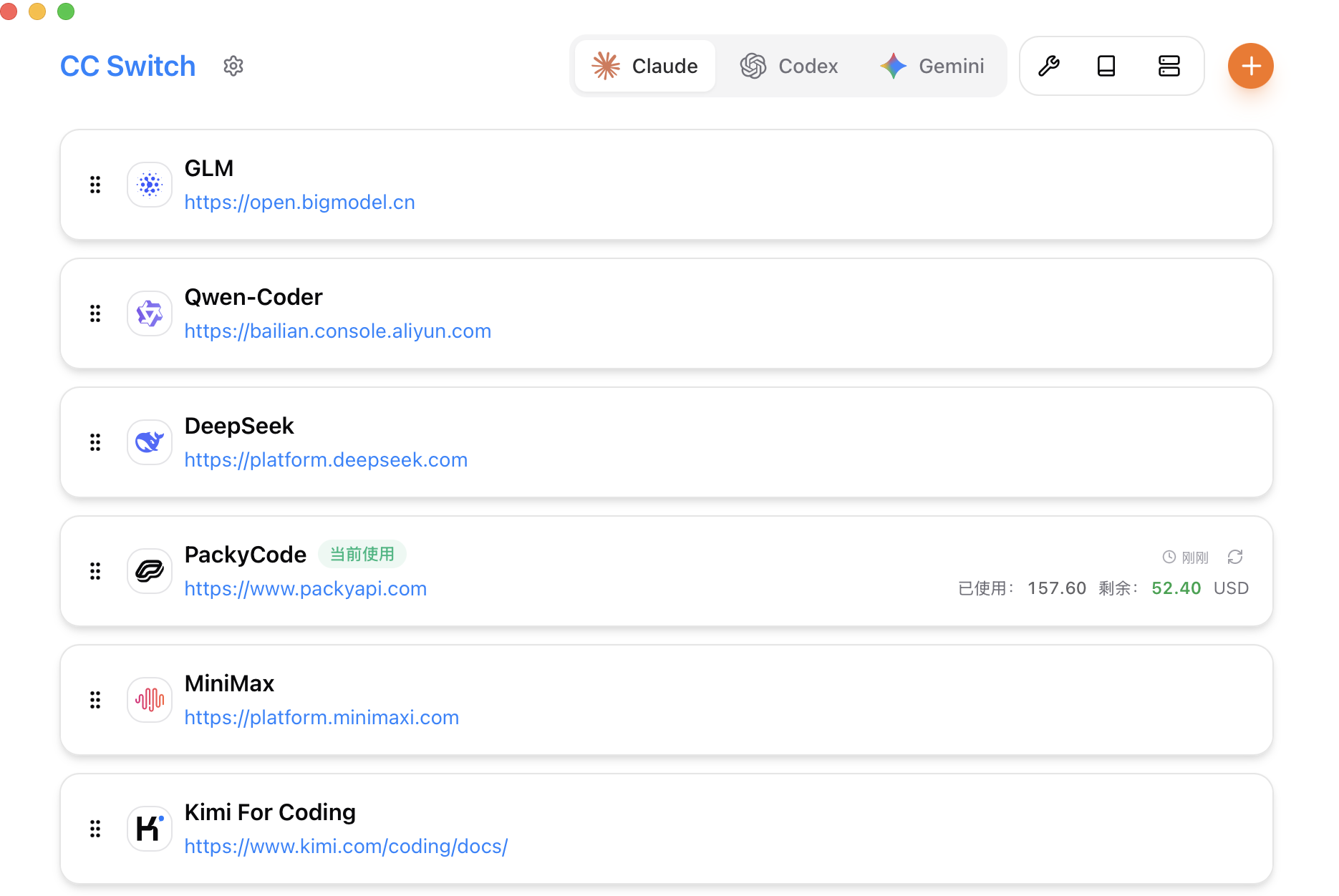
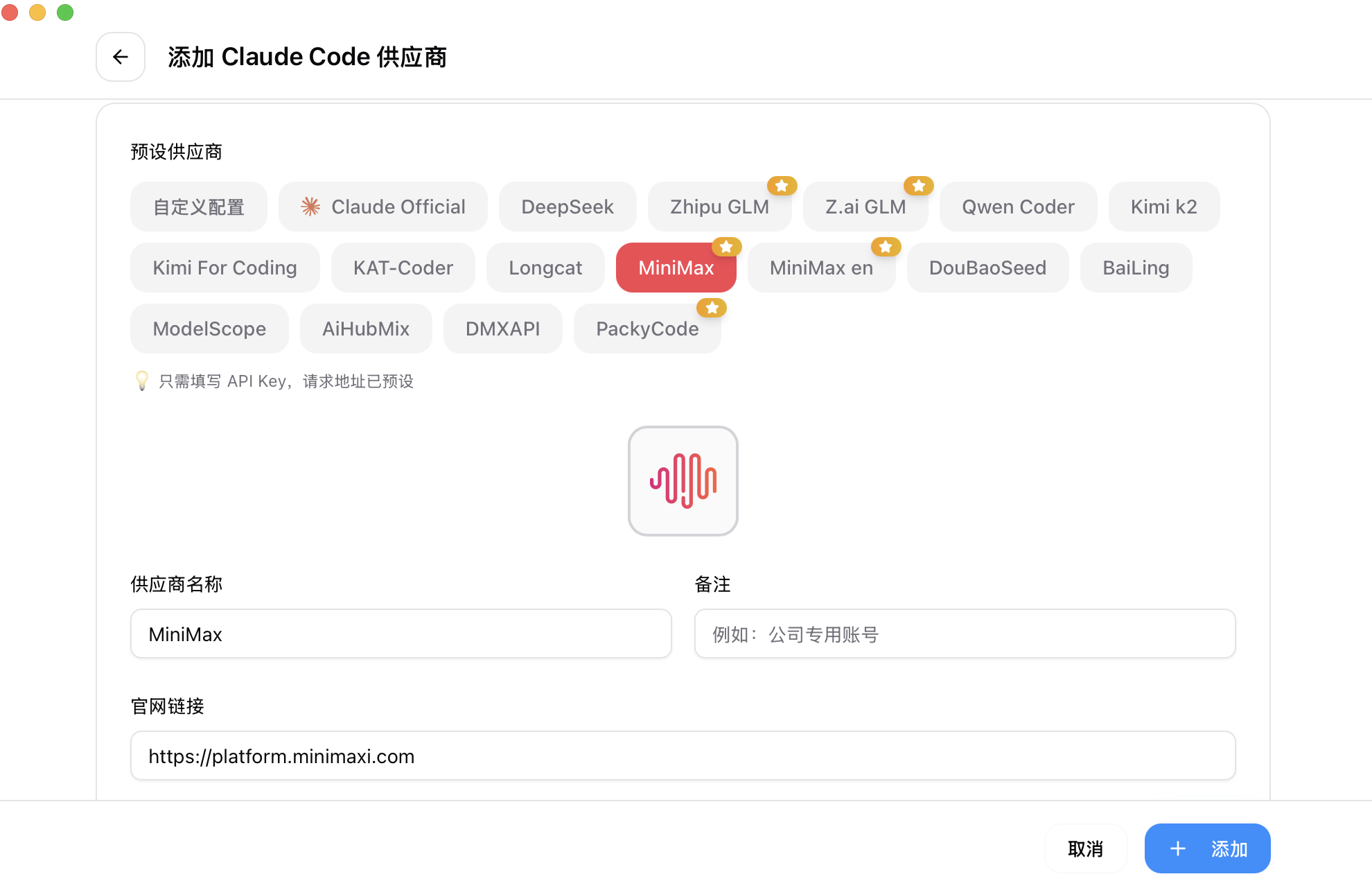
Interface Preview
Keep the density of a desktop tool while reducing friction.
The main interface handles concentrated management. The add-provider dialog handles fast import and reuse. The site borrows the real product surface instead of inventing a fake story.
Workflow
Four steps to take over daily switching and sync.
The homepage should explain the first-run flow clearly instead of repeating the documentation tree.
- 01
Import your existing environment
On first launch, bring current CLI settings in as default providers instead of rebuilding everything from scratch.
- 02
Add providers or official logins
Start from presets or create custom endpoints, then reuse shared configuration snippets across providers.
- 03
Sync extensions and supporting files
Bring MCP, Prompts, Skills, and Deep Link imports into one workflow rather than juggling multiple directories.
- 04
Switch when needed and keep tracking
Move between providers from the window or tray, then verify the result through sessions, logs, and usage dashboards.
Install
Keep installation paths short and direct.
The homepage keeps only the shortest installation entry points. Full detail belongs in the manual and release notes, not in half a README clone.
macOS
Homebrew is the shortest path and keeps upgrades simple.
brew tap farion1231/ccswitch
brew install --cask cc-switch
Windows
Download the `.msi` installer or the portable ZIP from Releases.
CC-Switch-v{version}-Windows.msi
CC-Switch-v{version}-Windows-Portable.zip
Linux
Use `.deb`, `.rpm`, `.AppImage`, or `paru` on Arch-based systems.
paru -S cc-switch-bin
# or download .deb / .rpm / .AppImageFAQ
Keep only the necessary questions on the homepage.
Which tools does CC Switch support?
CC Switch supports Claude Code, Codex, Gemini CLI, OpenCode, and OpenClaw, with provider management and sync behaviors tailored to each tool.
Do I need to restart the terminal after switching providers?
Most tools still require restarting the terminal or the corresponding CLI before the change takes effect. Claude Code is closer to hot switching and usually does not require a restart.
Is it only a provider switcher?
No. It also covers MCP, Prompts, Skills, session browsing, proxy takeover, usage tracking, cloud sync, and Deep Link imports.
Where is the data stored?
The core data lives under `~/.cc-switch/`, including the SQLite database, local settings, backups, and skills directory, with optional sync to cloud folders or WebDAV.
CC Switch
Put your AI CLI entry points under one control surface.
If you already use Claude Code, Codex, Gemini CLI, OpenCode, or OpenClaw in parallel, the homepage should explain the product’s actual value without hand-waving.